 13:09
SPOILER review: that ending explained
Plot Twist Pals
410K views · 1 day ago
YouTube does not let viewers block words or topics. TubeBlock, a free browser extension, adds a keyword filter: type a word once and every video with it in the title or channel name disappears from search, Home, Up next and Subscriptions.
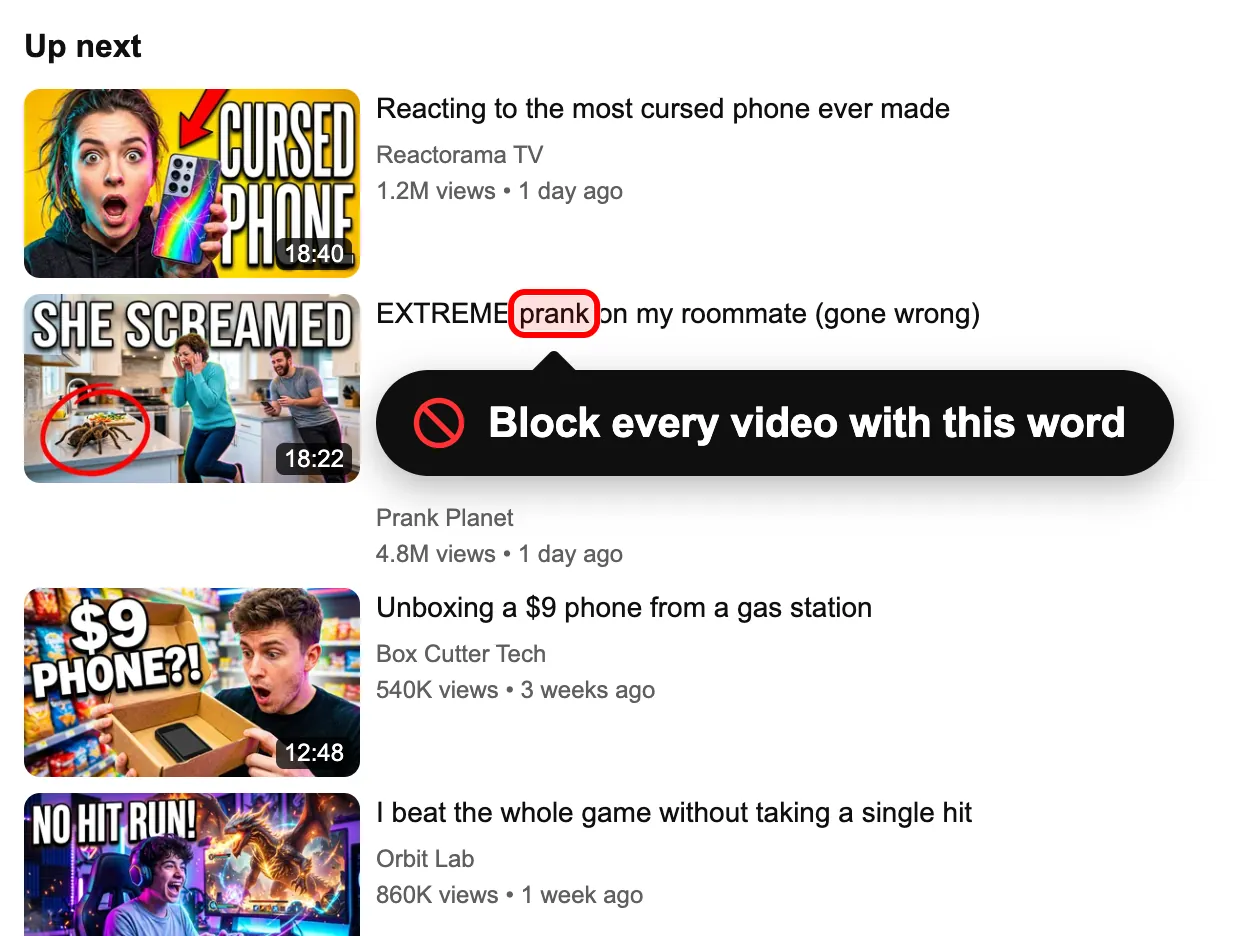
Demo feed: type a word to hide matching videos
Made-up channels and videos. This is a live preview of how TubeBlock behaves on YouTube.
Showing all 3 items. Nothing is hidden yet.
13:09SPOILER review: that ending explained
Plot Twist Pals
410K views · 1 day ago
 19:44
Ultimate prank compilation 2026 (try not to laugh)
Gotcha Gremlins
6.2M views · 1 month ago
 31:20
Reaction: the worst movie of the year
Reactorama TV
2.4M views · 6 days ago
Everything in this demo feed is hidden. Press Reset demo to bring it back.
This is a demo. The extension for your real YouTube is coming soon.
Get TubeBlockCan you block keywords on YouTube? Not as a viewer. YouTube has no setting that hides videos containing a word, and the tools that sound similar do something else:
cooking -asmr. YouTube does not reliably honour it, and it only affects that one search, not Home or Up next.Supervised accounts let parents pick a content level and block specific channels, but not words. So if you want to block words, topics or tags, you need an extension.
The extension is coming soon for Chrome, Edge, Brave and Opera. Visit the install page for release information.
Get TubeBlock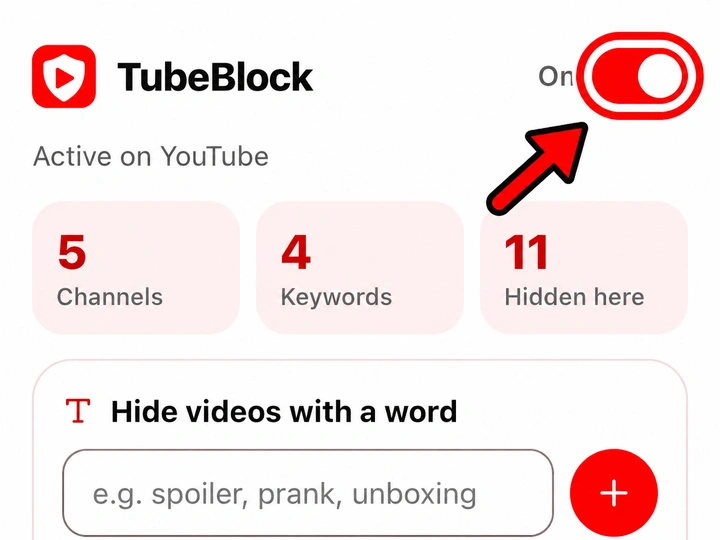
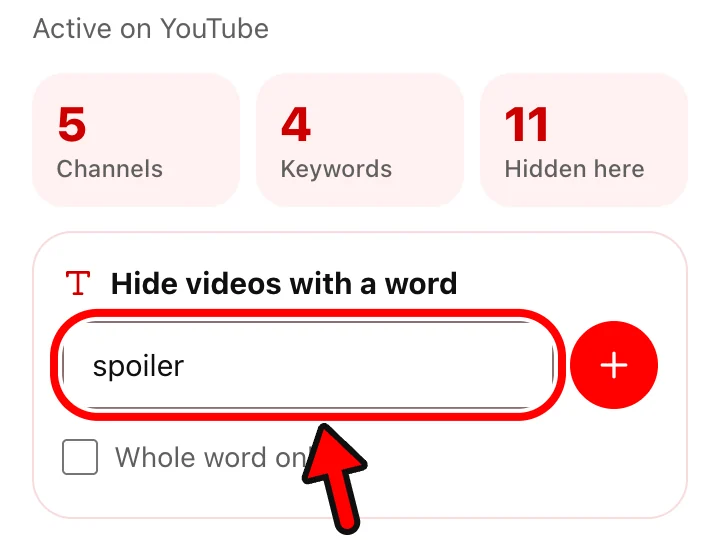
Click the TubeBlock icon in the toolbar, type a word or a short phrase and add it. Videos whose title or channel name contains it vanish from the open YouTube tab.
In TubeBlock's settings you see every keyword. Turn on whole word for short words, remove ones you no longer need, or export the list to a file and import it on another computer.
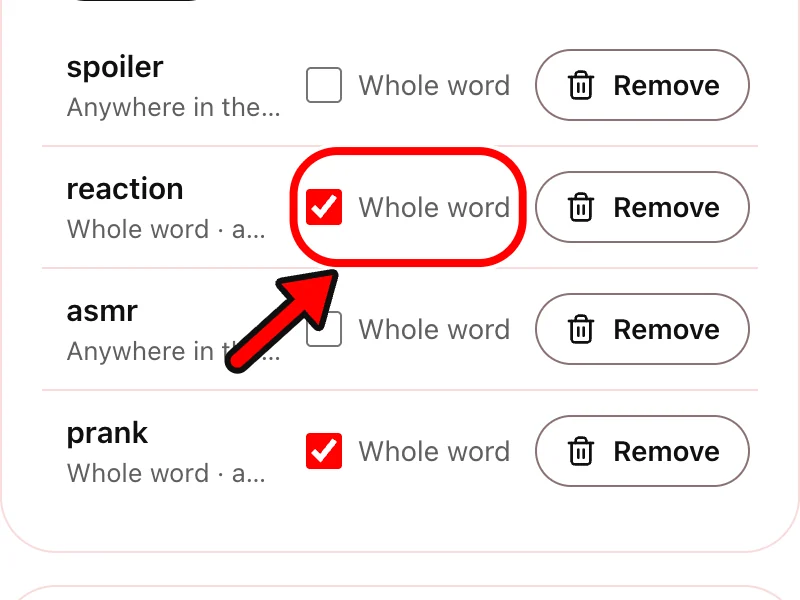
A keyword is checked against each video's title and its channel name. By default it matches anywhere inside a word: "prank" also hides "Pranksters vs. security cameras". With whole word turned on, it only matches the word on its own, so "cat" hides "My cat is weird" but not "Top category picks". Try both in the demo above with "prank" and "spoiler".
Pick words that describe what you want gone rather than very common words. One word per entry keeps the list easy to manage; phrases like "full movie" work too.
| Place on YouTube | Videos matching a keyword |
|---|---|
| Search results | Hidden |
| Home feed | Hidden |
| Up next sidebar | Hidden |
| Subscriptions feed | Hidden |
| Shorts shelves | Matching Shorts are hidden |
| Video descriptions, tags and comments | Not checked: only title and channel name |
| What you want | YouTube built-in | TubeBlock |
|---|---|---|
| Hide videos with a word in the title | No | Yes |
| Match channel names | No | Yes |
| Whole-word matching | No | Yes, per keyword |
| Applies to every search automatically | Minus sign, one search, not reliable | Yes |
| Filter comments on your own channel | Blocked words in YouTube Studio | No |
| Works in the YouTube app | No keyword filter there | No, desktop browser only |
Not with YouTube's own settings: viewers have no keyword filter. With TubeBlock in a desktop browser you can block any word, and matching videos are hidden across youtube.com.
Add the word to TubeBlock once. From then on, search results with that word in the title or channel name are hidden in every search, without typing anything extra.
Yes, by blocking the words that describe the topic, for example the name of a game or show. Add a few related words for better coverage, and block channels that only cover that topic.
There is no way to do it in the YouTube apps for iPhone, iPad or Android, and TubeBlock does not run there. The filter works on youtube.com in Chrome, Edge, Brave or Opera on a computer.
It makes a keyword match only as a separate word. Without it, "art" would also hide "start" and "party"; with it, only titles with "art" on its own are hidden.
Last updated
TubeBlock is free, needs no account and keeps your lists in your browser. It works in Chrome, Edge, Brave and Opera on a computer.